
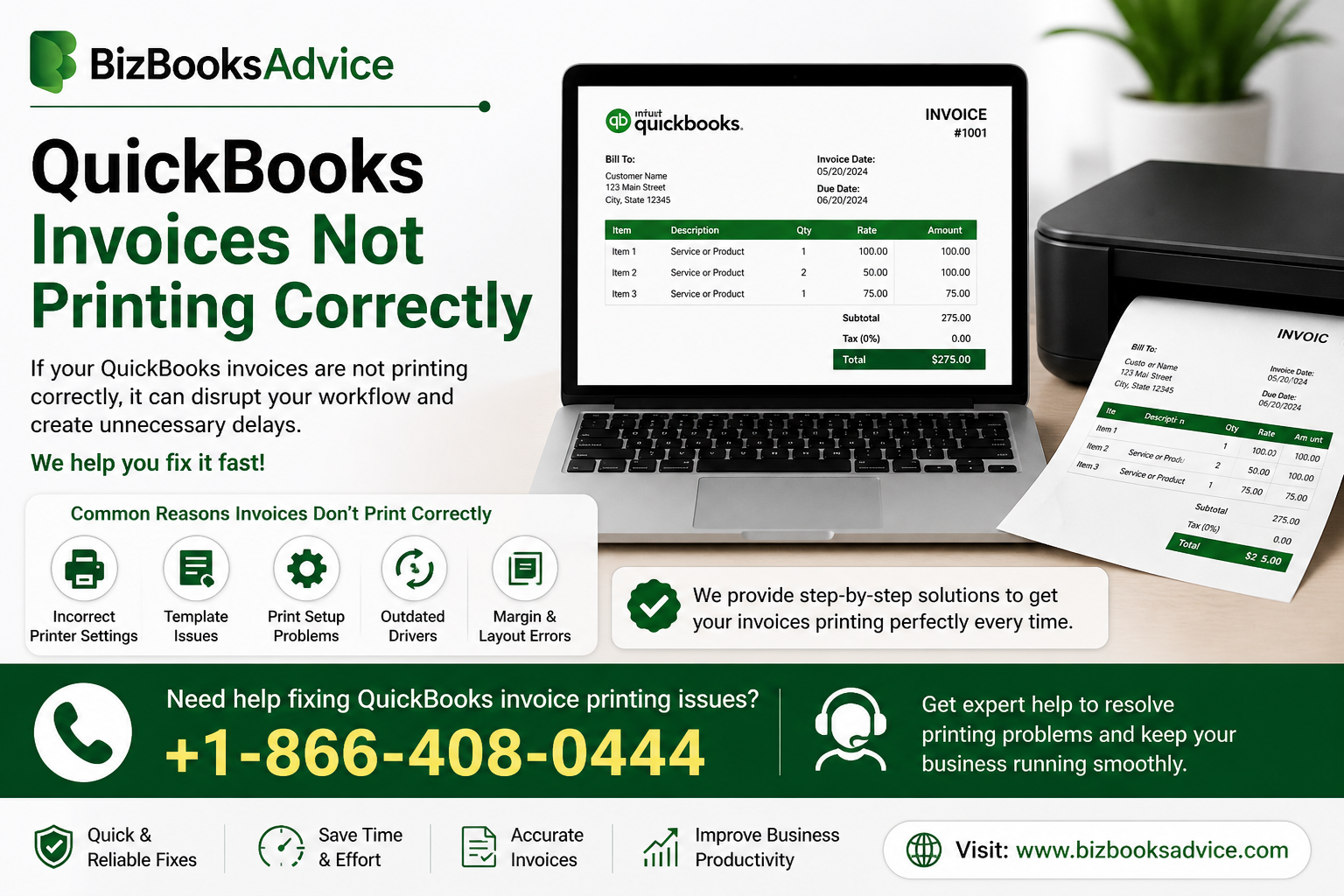
If you are facing QuickBooks Invoices Not Printing Correctly, the issue can slow down billing and make your business documents look unprofessional. A print problem may show up as missing text, cut-off margins, blank areas, wrong page layout, or invoices that do not match what you see on screen. For businesses that send invoices regularly, even a small printing issue can create delays and extra rework.
The good news is that many print issues are tied to settings rather than serious software damage. In most cases, the problem comes from page setup, printer preferences, driver conflicts, or a mismatch between the form and the printer. Once you identify the cause, the path to a clean printout becomes much clearer.
Why Invoice Printing Matters
Invoices are part of your customer communication, so they need to look accurate and easy to read. A poorly formatted invoice can confuse clients, slow payments, or make your business appear less organized. That is why print issues deserve attention even when the software itself seems to work fine.
When QuickBooks sends a form to the printer, it relies on both the application settings and the printer configuration. If one of those pieces is off, the final result can be different from what you expected. A clean print setup helps maintain a professional image and saves time.
Common Print Problems
One of the most frequent problems is cut-off text or margins that do not match the page. This often happens when the form layout does not fit the selected paper size. Another common issue is blank spaces or missing fields, which may point to a font, template, or printer driver problem.
Some users also notice that invoices print differently from the preview. That usually means the screen layout and printer settings are not aligned. In many cases, the print preview looks fine, but the output still needs a closer look at the page setup.
First Things to Check
Start by confirming that the printer itself is working normally. Try printing a simple document from another program to make sure the issue is not limited to QuickBooks. If the printer works elsewhere, the problem is likely inside the QuickBooks form or setup.
Next, check the paper size and printer orientation. If the invoice form is designed for letter size but the printer is using another format, the output may shift or cut off content. Matching the paper and form settings can solve many common problems.
Template and Layout Review
Invoice templates play a big role in how the final document looks. If a template has been modified or damaged, it may print incorrectly even if the rest of QuickBooks is working well. Testing a standard template can help you determine whether the custom design is causing the issue.
You should also review the print margins and scaling. If the invoice is too wide for the page, QuickBooks may trim or compress parts of it. Small adjustments to the layout often make a big difference in the final print result.
Printer Driver and Device Checks
A printer driver is the software that tells your computer how to send the document to the printer. If the driver is outdated or mismatched, it can affect print quality and layout. Updating or reinstalling the printer driver is often a practical step when invoices are not printing as expected.
It also helps to restart the printer and the computer before testing again. Temporary communication issues between QuickBooks and the device can sometimes cause printing errors. A clean restart may clear the problem without additional changes.
Font and Display Issues
Sometimes the printed invoice looks wrong because of font incompatibility. If QuickBooks uses a font that the printer does not handle well, text may shift, disappear, or print incorrectly. In that case, switching to a more standard font can improve the output.
Display settings can also affect how forms are rendered. If your screen resolution or scaling is unusual, the form may look right on the monitor but print differently. Reviewing those settings can help reduce formatting surprises.
Print Preview vs. Final Output
The print preview is a useful guide, but it is not always the final proof. In some situations, the preview looks fine while the printer still produces a distorted page. That is why testing a physical copy is important before sending invoices to customers.
If the preview already looks wrong, the issue is usually with the template or page setup. If the preview is fine but the printed copy is not, the printer or driver is more likely to be the problem. This distinction makes troubleshooting faster.
Practical Fix Sequence
A simple order can save time. First confirm that the printer works outside QuickBooks, then verify paper size and orientation, then test a standard invoice template. After that, review margins, scaling, fonts, and printer drivers if the problem continues.
If the issue remains, try printing from another machine or another printer if available. That helps isolate whether the issue is tied to a specific device. A step-by-step approach is usually more effective than changing several settings at once.
Read Also – QuickBooks Online Payroll Subscription
Preventing Repeat Problems
Once invoices print correctly again, keep a copy of the working template and settings. That makes it easier to restore the same setup later if something changes. Regularly updating printer drivers can also help reduce future conflicts.
It is also smart to avoid unnecessary edits to the form layout unless you really need them. The more changes you make, the more chances there are for layout issues to appear. A stable template usually gives the best long-term result.
Read Also – QuickBooks Cannot Communicate with the Company File
Conclusion
When QuickBooks Invoices Not Printing Correctly, the cause is often tied to page setup, templates, fonts, or printer drivers rather than a major software failure. The best approach is to check the printer, verify margins and paper size, test the template, and review driver settings until the output matches the invoice preview. In many cases, those steps are enough to restore clean and professional printing.
For more QuickBooks guidance and practical tips, bizbooksadvice is a helpful place to explore.
Read Also – https://blogchowk.com/perform-pipedrive-quickbooks-integration-a-complete-guide/